
How to Subscribe to CapCut Pro (Mobile & Desktop)

Ever finished a video, felt proud… then hit a “Pro only” wall or spot a watermark you can’t unsee?
Yeah. That’s what pushed me to figure out how to subscribe to CapCut Pro. I wanted clean exports, better effects, and fewer limits getting in the way when I’m already on a roll.
And it’s not just you trying to level up. Video is everywhere right now, with around 9 in 10 businesses using video as a marketing tool.
If you’re thinking about upgrading, I’ll show you how to subscribe to CapCut Pro on iPhone, Android, and desktop, how to cancel, and what to do if the payment goes through but nothing changes.
Capcut Pro Subscription at a Glance (Who It’s for + What It Unlocks)
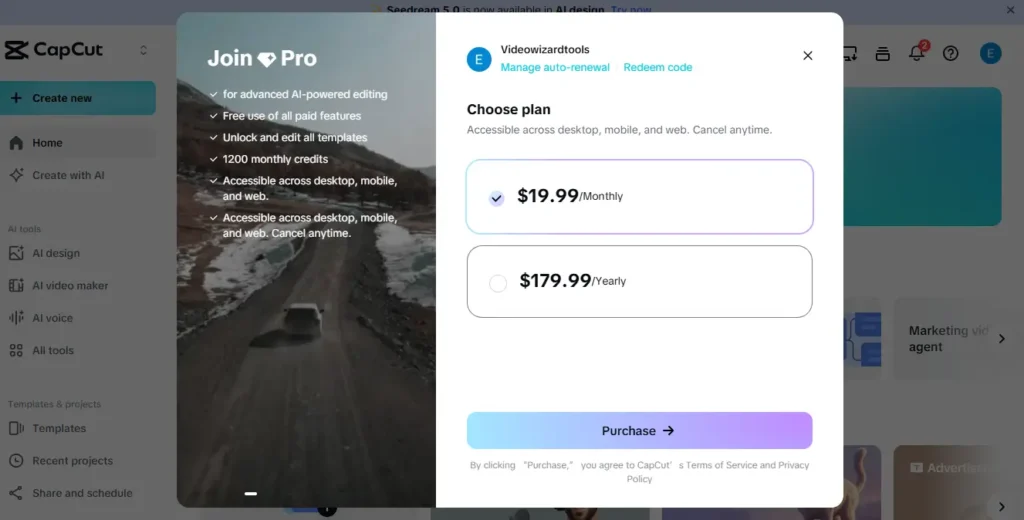
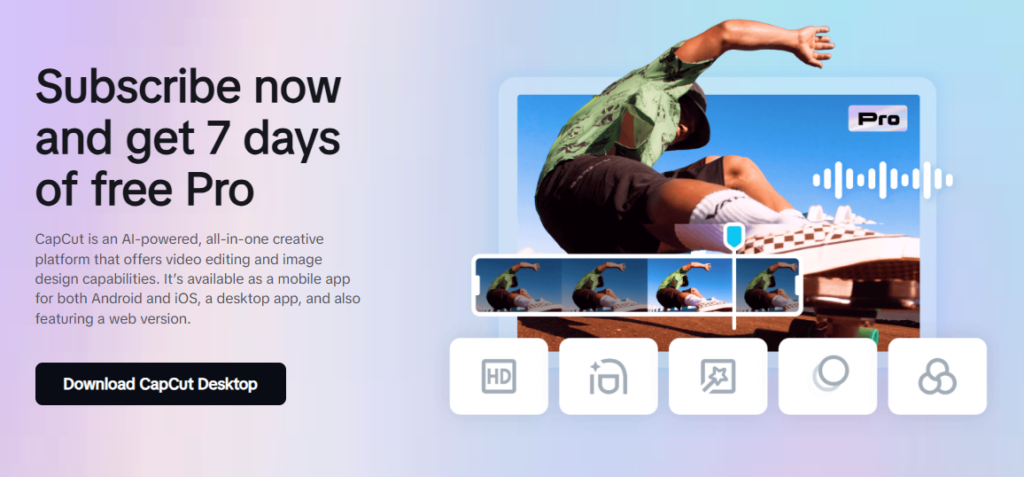
CapCut Pro is the paid version of CapCut. You pay monthly or yearly (and sometimes you’ll see other options depending on your country and device), and it unlocks extra tools that make editing faster and your final video look cleaner.
CapCut Pro is usually worth it if you: export videos often, post on TikTok/Instagram/YouTube, want cleaner “no watermark” results, or you keep bumping into locked effects and templates.
You might be fine on the free plan if you: edit once in a while, don’t care about premium effects, and you’re okay working around a few limits.
What Pro typically unlocks: watermark-free exporting, more premium effects and templates, higher-quality export options (often up to 4K on supported devices), and extra AI tools. Exact features can change by region, platform (iOS/Android/Desktop/Web), and your plan type.
When you’re ready to check what your account offers, use the CapCut upgrade page and confirm the price inside your own Upgrade/Subscription screen before paying.
CapCut Pro has become a popular choice for content creators, social media enthusiasts, and video editing professionals due to its advanced features like watermark-free exports, higher resolution options, and exclusive effects.
From watermark-free exports to advanced tools and exclusive effects, subscribing to CapCut Pro opens up a whole new world of creative possibilities.
Let’s walk you through this!
Note: CapCut pricing and plan names can vary by country, platform (iOS/Android/Desktop/Web), taxes, and promotions. Always confirm your exact price on your CapCut Upgrade/Subscription screen before paying.
What You Get When You Upgrade
CapCut’s free plan is solid, but Pro is where the “everything looks polished” stuff lives. Just keep this in mind: what you see can vary by country, device (iOS/Android/Desktop/Web), and plan type. So always trust what your own Upgrade/Subscription screen shows.
Cleaner Exports And Better Quality
Pro typically removes watermarks and unlocks higher export options, including higher resolutions (often up to 4K on supported devices) and better quality settings. If you post often, this alone can make your videos look more professional.
More Effects, Templates, And Transitions
You usually get access to more premium filters, effects, transitions, fonts, and templates. That means less time building everything from scratch, and more time getting a video out that looks like you knew what you were doing.
More AI Tools (Depending On Your Plan)
Some Pro plans include extra AI tools like smarter cutouts, auto captions, cleanup tools, or other “one-tap” helpers. The exact list changes a lot, so check what’s available in your version of CapCut.
Cloud Storage And Cross-Device Editing (Where Available)
Many users see improved cloud storage or project syncing with paid plans. If you edit on your phone and finish on desktop, this can be a big deal. But again, availability depends on your region and plan.
How To Subscribe To CapCut Pro
The exact buttons may look slightly different depending on your device and region, but the overall process is simple.
Prices can vary by country, platform, taxes, and promotions, so always confirm your exact amount on your Upgrade screen before paying.
Step 1: Install Or Open CapCut
Make sure you’re using the device you plan to edit on.
- iPhone / iPad: Download or open CapCut from the App Store.
- Android: Download or open CapCut from Google Play.
- Desktop: Install CapCut Desktop or open the web version if it’s available in your region.
Step 2: Sign In To The Right Account
Open CapCut and log in using the account you want tied to your subscription (TikTok, Google, Apple ID, email, or phone). If you plan to edit across devices, use the same login everywhere.
Step 3: Open The Upgrade Or Subscription Screen
- Mobile: Tap Me or Profile, then tap Upgrade, Pro, or Subscription.
- Desktop / Web: Look for an Upgrade or Pro banner inside your account or settings area.
If you prefer starting from the official upgrade page, you can access it here: CapCut Pro subscription. Always double-check the pricing inside your account before confirming payment.
Step 4: Choose Your Plan
You’ll typically see monthly and yearly billing options. Yearly plans are often cheaper overall if you know you’ll use CapCut long-term, but monthly gives you flexibility.
Step 5: Complete Payment
- iPhone / iPad: Payment goes through Apple. Confirm with your password, Face ID, or Touch ID.
- Android: Payment goes through Google Play.
- Desktop / Web: You may pay by card or other available checkout methods.
Step 6: Confirm Your Plan Is Active
After payment, return to CapCut and check your subscription screen. Your plan should show as active, and premium tools should unlock automatically. If not, close and reopen the app once.
How To Manage Or Cancel Your Subscription
If you decide you no longer need a paid plan, you can manage or cancel it from the same platform where you originally subscribed. After canceling, you’ll usually keep access until the end of your current billing period.
Cancel On iPhone Or iPad (App Store)
- Open Settings on your iPhone or iPad.
- Tap your Apple ID name at the top.
- Tap Subscriptions.
- Select CapCut.
- Tap Cancel Subscription (or change your plan).
Cancel On Android (Google Play)
- Open the Google Play Store.
- Tap your profile icon.
- Go to Payments & Subscriptions → Subscriptions.
- Select CapCut.
- Tap Cancel Subscription (or manage your plan).
Cancel On Desktop Or Web
- Go to the CapCut account page and sign in.
- Open Account, Billing, or Subscription settings.
- Select your active plan.
- Choose Manage or Cancel.
Important: To avoid being charged again, cancel before your renewal date. If you don’t see a cancel option, double-check that you’re logged into the same account and using the same platform where you originally subscribed.
Troubleshooting Common CapCut Subscription Issues
Most upgrades work instantly. But sometimes you pay and nothing changes, or your Pro tools show up on one device but not the other. Here are the fastest fixes that solve most problems.
Paid, But Premium Features Did Not Unlock
- Close CapCut fully, then open it again (or restart your phone/computer).
- Confirm you’re signed into the same CapCut account you used during checkout.
- Go back to the Upgrade/Subscription screen and look for Restore Purchases (mostly on mobile).
- Wait a few minutes and check again. Activation can sometimes take a short moment.
Subscription Works On One Device But Not Another
- Make sure you’re using the same login method everywhere (TikTok/Google/Apple/email/phone).
- On the device that’s missing Pro, log out and log back in.
- Update CapCut to the latest version on both devices.
- On mobile, open the subscription screen and tap Restore Purchases if you see it.
I Cannot Find The Cancel Button
This usually means you’re looking in the wrong place. You must cancel where you paid:
- iPhone/iPad: Apple ID → Subscriptions
- Android: Google Play → Payments & Subscriptions → Subscriptions
- Desktop/Web: Your CapCut account → Billing/Subscription settings
Renewed, But Premium Tools Disappeared
- Check if your renewal payment actually went through (receipt email or store billing page).
- Log out and log back in to refresh your subscription status.
- Reopen the Upgrade/Subscription screen and confirm your plan shows as active.
Billing Problems (Unexpected Charge, Double Charge, Or Renewal Issues)
First, confirm where you subscribed:
- App Store: billing and refunds are handled through Apple.
- Google Play: billing and refunds are handled through Google.
- Desktop/Web: check your CapCut billing page and contact support with your receipt/order ID.
Tip: If you contact support, include your receipt/order ID, the email/account you subscribed with, and a screenshot of your subscription screen. It usually speeds things up.
FAQs
Can I Use CapCut Pro On Multiple Devices?
Often, yes. Your subscription is typically tied to your CapCut account, so signing in with the same account on each device should unlock Pro. But device access can still depend on your plan type, region, and where you subscribed (App Store, Google Play, or desktop/web).
Does CapCut Offer A Free Trial?
Sometimes. Trials vary by country, device, and account. The quickest way to confirm is to open CapCut and check your Upgrade/Subscription screen to see if a trial is available.
How Do I Cancel CapCut Pro?
You cancel where you paid:
- iPhone/iPad: Apple ID → Subscriptions
- Android: Google Play → Payments & Subscriptions → Subscriptions
- Desktop/Web: CapCut account → Billing/Subscription settings
What Happens After I Cancel?
You’ll usually keep Pro access until your current billing period ends. After that, your account typically returns to the free tier, and premium tools or assets may become locked unless you resubscribe.
Does CapCut Refund Subscriptions?
Refund rules depend on where you subscribed. App Store purchases follow Apple’s refund process, Google Play purchases follow Google’s refund process, and desktop/web refunds depend on CapCut’s billing provider and policy. Refunds are not guaranteed.
I Paid But Pro Did Not Activate. What Should I Do?
First, confirm you’re logged into the same CapCut account used during checkout. Then restart the app. On mobile, go back to the subscription screen and tap Restore Purchases if you see it. If it still does not unlock, wait a few minutes and check again.
Will I Lose My Projects If I Stop Paying?
Usually, no. Your projects should still be there, but anything using premium effects, templates, or tools may become restricted. If a project is important, export a final version before your plan ends.
Can I Use CapCut Offline After Subscribing?
Yes, most editing works offline. But features like cloud sync, downloading assets, account checks, and some templates may require an internet connection.
Wrap-Up
Subscribing to CapCut Pro is pretty straightforward once you know where the Upgrade screen lives on your device.
The biggest win is simple: fewer limits, cleaner exports, and more tools that help your videos look polished without extra stress.
Just remember two things before you pay: confirm the exact price on your own subscription screen (it varies by country and platform), and make sure you’re logged into the right CapCut account so your Pro features unlock properly.
If you want the quickest path, open CapCut → Me/Profile → Upgrade, pick a plan, and confirm payment.
And if you ever decide it’s not for you, cancel on the same platform where you subscribed so you don’t get billed again.
