
Is CapCut a One-Time Purchase? Here’s the Truth

Is CapCut a one-time purchase, or do you have to keep paying for it?
I wondered the same thing the first time I saw the “Pro” upgrade button. It wasn’t clear if i was buying the app forever or signing up for another subscription.
Here’s the simple answer: CapCut is not a one-time purchase. There’s no lifetime license or “pay once, own it forever” option. If you upgrade, you’re paying monthly or yearly.
But that’s not the whole story. There are a few details that confuse people. Let me break it down clearly so you know exactly what you’re signing up for.
No, CapCut Is Not a One-Time Purchase
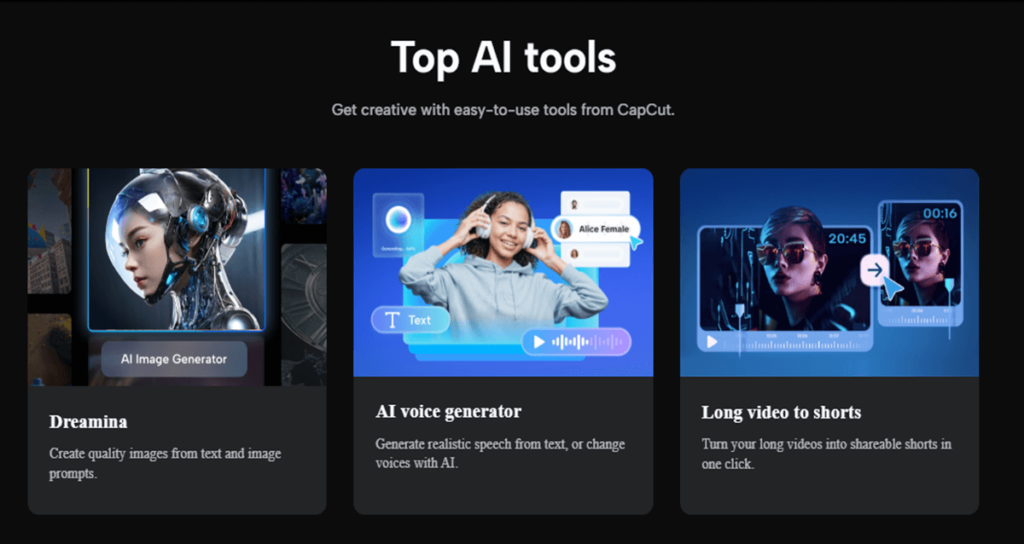
You cannot buy CapCut once and own it forever. There is no lifetime license, permanent unlock, or “pay once” option for CapCut Pro.
If you upgrade from the free version, you’re signing up for a subscription. That means you pay either monthly or yearly, and the payment renews automatically until you cancel.
The free version of CapCut stays free. But the Pro version works like most modern apps today. It runs on a recurring subscription model, not a single upfront payment.
If you stop paying, you don’t lose your projects. But you do lose access to Pro features and premium assets until you resubscribe.
Why People Think CapCut Might Be a One-Time Purchase
A lot of people assume CapCut is a one-time payment app. And honestly, it’s easy to see why.
First, the app is completely free to download. You can edit videos, export in 1080p, use transitions, add text, and even create solid social media content without ever paying.
There’s no forced trial. No countdown timer. No “7 days left” pressure.
So it feels like you already own it.
Second, CapCut doesn’t always make the subscription model obvious upfront. You only see locked Pro features when you try to use premium effects, templates, or certain AI tools.
That’s usually the moment people realize it’s not a pay-once app.
And finally, some video editing apps do offer lifetime licenses. So it’s natural to wonder if CapCut has a hidden “buy once, forever” option somewhere.
It doesn’t.
If you’re upgrading, you’re subscribing and not purchasing permanently.

Does CapCut Offer Any One-Time Payments at All?
Quick answer: not for Pro.
CapCut does not offer a lifetime Pro upgrade or a permanent one-time purchase for the full premium version.
However, there is one thing that can feel similar to a one-time payment: credits.
CapCut sometimes allows you to buy credits for specific AI features. Think of it like topping up a prepaid phone. You’re not buying the app. You’re buying limited usage of certain tools.
But here’s what matters:
Buying credits does not unlock CapCut Pro permanently.
You cannot stack credits to create your own “lifetime plan.”
Credits expire after a set period.
So even though you can pay once for certain feature usage, that’s very different from owning the software forever.
If you’re looking for a true “buy once, use forever” video editor, CapCut doesn’t currently offer that model.
Can You Buy Features Separately (One-Time)?
If you’re hoping for a “pay once, own it forever” CapCut deal, that option doesn’t exist. CapCut’s paid editing upgrades are built around subscriptions, not a lifetime license.
That said, CapCut does have something that feels kind of like a one-time purchase: credits.
Credits are pay-as-you-go tokens you can buy to use certain Pro AI features without subscribing. Think of it like topping up minutes on a phone plan.
You’re not buying the tool permanently; you’re buying usage.
A few important details that trip people up:
- Credits cannot be used to buy CapCut Pro itself. So you can’t “stack credits” and turn that into a subscription.
- If you buy credits directly, those purchased credits expire 2 years after purchase.
- If you’re a Pro subscriber, you may get subscription credits, but those are tied to your billing period and can expire sooner.
So the honest answer is: CapCut doesn’t really do one-time purchases for “Pro forever.” It does subscriptions, and it also offers credits for specific AI tools if you want to pay only when you use them.
CapCut Pricing by Platform (Mobile vs Desktop vs Web)
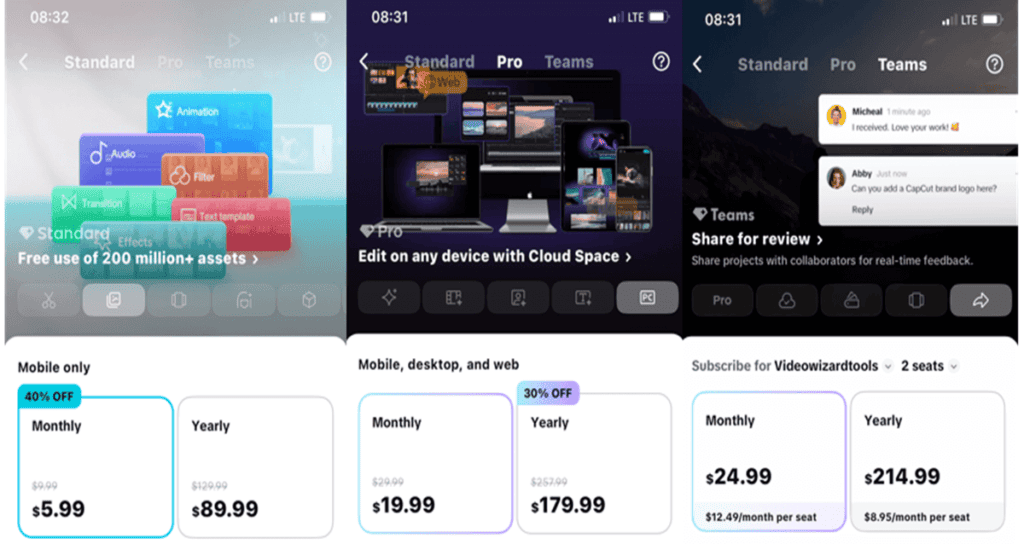
One big reason CapCut pricing feels “inconsistent” is that the plan you’re shown depends on where you’re subscribing (phone app vs desktop app vs the web checkout).
On top of that, taxes, app-store fees, promos, and even older “grandfathered” rates can change what you see.
Mobile (iPhone / Android)
On mobile, CapCut often surfaces the Standard (mobile-only) option as the “entry” paid plan.
- Standard (Mobile Only): $5.99/month or $89.99/year
This is typically the cheapest way to unlock premium assets/features on your phone.
Important note: because purchases can run through the Apple App Store or Google Play Store, your total may look higher after store fees/tax, or you may see different pricing in different regions.
Desktop (Windows / Mac)
On desktop, CapCut usually pushes the Pro (cross-platform) plan more aggressively, since desktop workflows are positioned as “pro editing.”
- Pro (Mobile + Desktop + Web): $19.99/month or $179.99/year
So if someone says “CapCut is $19.99,” they’re usually looking at the desktop/web Pro subscription, not the mobile Standard tier.
Web (CapCut website)
On the web checkout, CapCut commonly highlights Pro (and sometimes Teams), and it’s also where you’re more likely to notice annual savings or limited promos depending on your country.
- Pro (Web / Cross-platform): $19.99/month or $179.99/year
- Teams (Collaboration): $24.99/month or $214.99/year (often shown as per-seat / team billing depending on context)
The simple takeaway
If your readers only remember one thing, make it this:
- Mobile shows the cheaper “Standard” more often ($5.99/mo).
- Desktop + Web tend to show “Pro” ($19.99/mo).
- Annual plans are the same plan, just billed yearly ($89.99/yr Standard; $179.99/yr Pro).
For a full breakdown of pricing, platforms, and plan options, check out our complete CapCut pricing guide.
What Happens If You Cancel CapCut Pro?
If you cancel CapCut Pro, you don’t lose your account or your saved projects.
Your edits stay in your account. Your drafts don’t disappear.
But anything that depends on Pro features gets locked again.
That usually means:
Premium effects and templates stop working.
Certain advanced tools become unavailable.
Pro-only assets can’t be exported unless you resubscribe.
The editor itself doesn’t shut down. It simply reverts back to the free version.
So you’re not risking your work by trying Pro. You’re just renting access to premium tools while your subscription is active.
Once you stop paying, the extra features go away.
Who Should Pay for CapCut Pro and Who Should Stay Free?
Not everyone needs to upgrade to CapCut Pro. Here’s a quick guide:
Stay Free if you:
- Only edit occasionally, like short TikToks, Reels, or school projects.
- Don’t mind using free templates and effects.
- Are okay skipping premium tools when they appear locked.
Consider Pro if you:
- Frequently hit locked features and premium assets slow you down.
- Create content for a brand, client, or business and need commercial licensing.
- Want access to advanced templates, effects, or AI tools that save time.
- Need cloud sync across devices for smoother workflows.
The key takeaway: if CapCut is just for fun or casual editing, the free version is enough. If you’re creating content regularly and want professional-level tools, a subscription is worth it.
Frequently Asked Questions
Quick answers to common questions about whether CapCut is a one-time purchase or a subscription, plus billing, cancellations, and what happens after you stop paying.
Final Verdict: Is CapCut a One-Time Purchase?
No. CapCut is not a one-time purchase. There’s no lifetime license or “pay once, own forever” option.
The free version is generous and works for most casual creators. But if you want premium templates, advanced effects, AI tools, or smoother workflows, you’ll need a subscription—monthly or yearly.
Think of it this way: CapCut Pro isn’t something you buy once. You rent access to extra features while your subscription is active.
Stop paying, and those premium tools are locked again, though your projects remain safe.
A good rule of thumb:
If CapCut is something you open once in a while, free is enough. But if it’s part of your weekly (or daily) workflow and you’re constantly trying to access Pro features then a subscription stops feeling like an “extra cost” and starts feeling like a productivity shortcut.
