
Can I Use CapCut Pro on Multiple Devices? Yes! [Easy Guide]

Ever started editing on your phone, then got to your laptop and thought, “Wait… where did my project go?”
Yeah. That feeling is the worst. And it usually hits right when you’re on a deadline.
Here’s the good news: yes, you can use CapCut Pro on multiple devices, and you can set it up so your work follows you, not the other way around.
Also, you’re not imagining it, video is only getting bigger. Some reports say video is expected to make up about 82% of internet traffic.
Now let me show you what “multiple devices” really means, how to sign in the right way, and how to move projects without chaos.
What “multiple Devices” Actually Means
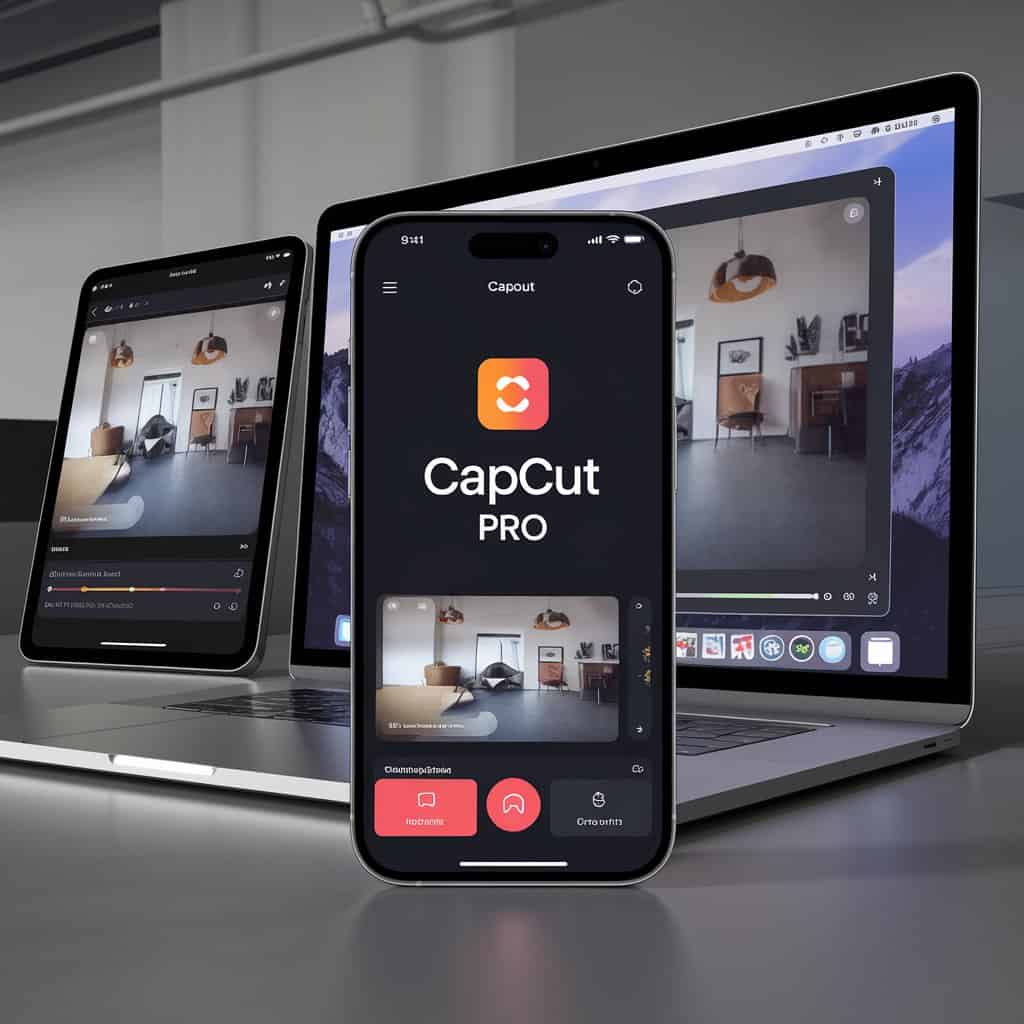
When people say “CapCut Pro works on multiple devices,” they usually mean two things:
First, you can log into the same account on different devices. Your Pro access is tied to your login, so when you sign in, the Pro features show up.
Second, you can start work on one device and continue on another. For example, you might rough-cut clips on your phone, then do the cleaner timing, text, and audio on your laptop.
What it does not always mean is this:
You can’t expect CapCut to behave like a shared Google Doc where two devices are editing the same timeline at the same time, live, with zero conflict.
If you open the same project in two places and make changes in both, you can end up with missing edits or the wrong version.
The simple rule: use one device at a time per project. Switch devices when you’re done on the first one, and you’ll avoid 90% of the weird problems people run into.
Now let’s talk about what devices CapCut Pro actually works on.
What Devices does CapCut Pro work on
CapCut Pro is built to follow you across the main devices creators actually use. So you can move between quick edits on mobile and deeper edits on a bigger screen without changing tools.
Here’s where you can use it:
Phones
Perfect for fast edits, captions, quick effects, and posting straight to social.
Tablets
A nice middle ground. Bigger screen than a phone, still portable. Great for trimming, arranging clips, and fine-tuning text and timing.
Laptops and Desktop Computers
Best when you want more control. Bigger timeline view, easier precision, and smoother workflow for longer projects or heavier edits.
As long as you sign in with the same account, you can use CapCut Pro across these devices and keep your workflow flexible.
How to Use Capcut Pro on More Than One Device (Step-by-step)
- Stick to one login method
If you signed up with Google on your phone, use Google on your laptop too. Same for Apple, TikTok, or email. Mixing methods can accidentally create a second account. - Install CapCut on every device you’ll use
Get it on your phone/tablet and install the desktop version on your computer. - Sign in on each device with the same account
Once you log in, your Pro features should show up automatically. - Check that Pro is active
Open your profile/account page and confirm it shows Pro. If it doesn’t, log out, log back in (same method), and reopen the app. - Use one device at a time per project
When switching devices, close the project on the first device before continuing on the next one. This helps avoid version mix-ups.
How to Move or Sync Projects Across Devices (the Practical Way)
There are two ways to keep your work flowing across devices. Which one you use depends on what you’re trying to move.
Option 1: Use Cloud/space Syncing for the Project
This is the best option when you want to keep editing the same project on another device.
- On the device where you started the edit, make sure the project is saved to your cloud/space area inside CapCut.
- Give it a clear name so you can spot it fast.
- On your second device, sign in to the same account, open your cloud/space projects, and load the project from there.
- Keep editing, then save it back to the cloud/space again before switching devices.
Tip: If you don’t see the project right away, refresh the project list, check your internet connection, and confirm you’re logged into the exact same account.
Option 2: Export the Finished Video and Move the File
This is the best option when you’re done editing and you just need the final video on another device.
- Export the video on Device A.
- Upload it to your preferred storage option (cloud drive) or transfer it to Device B.
- Post or deliver it from Device B.
A Quick Warning That Saves Headaches
Avoid editing the same project on two devices at the same time. Treat it like a baton pass: finish on one device, then continue on the next.
Common Problems When Switching Devices (and Quick Fixes)
1) Pro features aren’t showing on the second device
This usually happens because you’re logged into a different account without realizing it.
Fix it:
- Log out.
- Log back in using the same method you used originally (Google vs Apple vs TikTok vs email).
- Restart the app after logging in.
2) Your project isn’t showing up on the other device
Most of the time, the project was saved locally, not to the cloud/space.
Fix it:
- Go back to the device where you created the project.
- Save/upload it to your cloud/space area inside CapCut.
- On the other device, refresh your project list and check your cloud/space tab.
3) You opened the project on two devices and now the edits look different
That’s usually a version conflict.
Fix it:
- Pick the most updated version and keep working from that one only.
- Close the project on the other device completely before continuing.
4) Videos/effects look missing after switching devices
This can happen if some files didn’t upload, didn’t download, or you used media that only exists on one device.
Fix it:
- Make sure your source clips are available on the new device (or uploaded with the project).
- Reconnect missing media if CapCut prompts you.
- Use a stable connection while uploading/downloading projects.
5) Storage issues or slow syncing
Big projects can take time, especially with lots of clips or high-resolution footage.
Fix it:
- Clear space on your device.
- Use Wi-Fi for uploads/downloads.
- Keep your project names organized so you don’t re-upload the same thing by accident.
Benefits of Using Capcut Pro on Multiple Devices
Using CapCut Pro across devices is less about “cool tech” and more about saving your time and sanity.
You can start editing the moment an idea hits. Phone in your hand, quick cut, rough captions, basic timing. Then later, when you’re at a desk, you can open the same work on a bigger screen and polish it properly.
It also gives you the right tool for the right moment. Mobile is great for speed.
The desktop is great for control. Tablets sit in the sweet spot when you want comfort without being stuck at a desk.
Another big win is less panic when life happens. If one device dies, gets full, or starts acting weird, you’re not trapped. You can switch devices and keep moving.
And if you work with other people, multi-device access makes it easier to show drafts, get feedback, and make quick fixes without rebuilding the whole project from scratch.
Frequently Asked Questions
Quick answers about using CapCut Pro on multiple devices, syncing projects, and what to expect when switching between phone, tablet, and desktop.
Conclusion
Yes, you can use CapCut Pro on multiple devices, and it’s one of the easiest ways to keep your editing workflow moving without being stuck to one screen.
The key is to treat your account like your “passport.” Use the same login method on every device, and your Pro access follows you. Then, when you want to continue a project somewhere else, make sure it’s saved to your cloud/space so it actually shows up on your other device.
The biggest mistake people make is trying to work on the same project on two devices at the same time. If you avoid that and switch devices cleanly, everything stays simple. Rough cut on your phone, clean it up on your laptop, and do final touches anywhere you want.
Once you get this setup right, CapCut Pro stops feeling like an app you use on one device and starts feeling like a full editing system you can carry with you.
