


CapCut is free to use, but paid plans unlock premium features like AI tools, watermark-free exports, and cloud storage.
In 2026, there are four CapCut pricing plans available: Free, Standard, Pro, and Teams.
Here’s a full breakdown of what each plan costs and what you actually get.
Table of Contents
How Much Does CapCut Cost? (2026 Pricing)
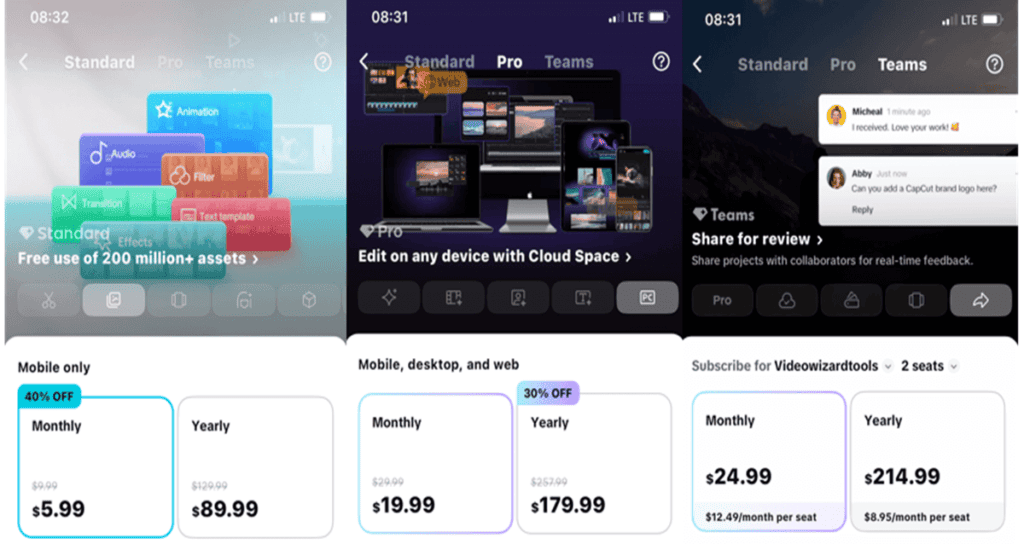
CapCut offers four plans in 2026: Free, Standard, Pro, and Teams. Here is exactly what each plan costs.
| Plan | Monthly Price | Annual Price | Best For |
|---|---|---|---|
| Free | $0 | $0 | Casual creators |
| Standard | $9.99/month | $89.99 | Mobile creators |
| Pro | $19.99/month | $179.99/year (~$15/month) | Content creators & professionals |
| Teams | $24.99/user/month | $9.99–$12.99/user/month | Agencies & businesses |
Note: Prices shown are USD web checkout prices. Your exact price may vary by country, device (iOS/Android/web), taxes, and active promotions.
Always confirm the final amount inside your CapCut account before paying. App store subscriptions typically run slightly higher ($21.99–$22.99/month for Pro) due to platform fees — subscribing via the web app gets you the lowest price.
CapCut Free Plan
The free plan gives you full access to CapCut’s core editor — timeline editing, effects, transitions, text tools, and audio — at no cost. You also get basic AI features like text-to-speech and auto captions (limited to 10 minutes).
Exports are watermark-free up to 1080p. The only catch is a CapCut-branded end clip, which you can delete before exporting.
Best for: Beginners, casual creators, and anyone making short-form content for TikTok, Instagram Reels, or YouTube Shorts who doesn’t need 4K or advanced AI tools.
CapCut Standard Plan — $9.99/month
Standard is a mobile-only plan. Its main benefit is watermark-free exports and access to more premium templates. It does not include 4K export, the full AI toolkit, or desktop access.
Standard is essentially the old Pro plan renamed — CapCut restructured its pricing in early 2026 without a formal announcement, renaming the previous $9.99 Pro tier to Standard and launching a new, higher-priced Pro tier.
Best for: Mobile-first creators who mainly need clean exports without watermarks but don’t need 4K or advanced AI features.
CapCut Pro Plan — $19.99/month or $179.99/year
CapCut Pro is CapCut’s flagship paid plan.
At $19.99/month, it unlocks 4K and HDR export, the complete AI toolkit — including camera tracking, vocal isolation, text-to-video, avatar generation, voice cloning, and bulk background removal — plus 1TB of cloud storage and 1,200 AI points per month.
The CapCut Pro yearly price is $179.99, which is billed as one payment and is equivalent to about $15/month.
You also get access to CapCut’s full royalty-free asset library of 12 million+ assets across desktop, mobile, and web.
It is best for Regular content creators, influencers, and professionals who need 4K exports, unlimited AI features, and cross-device access.
CapCut Teams Plan — From $24.99/user/month
The Teams plan is designed for agencies, marketing teams, and businesses. It adds shared brand kits, a team workspace, collaborative asset libraries, and centralized billing on top of everything in Pro.
Pricing starts at $24.99/user/month on monthly billing, or $9.99–$12.99/user/month on annual billing. Exact pricing varies by region, number of seats, and billing cycle. Teams can only be set up and managed through CapCut Online — not through the mobile or desktop apps.
CapCut Teams is best for teams of creators, agencies, and businesses that need to share assets, templates, and brand kits across multiple users.
Does CapCut Cost Money to Download?
No. CapCut is free to download on Android, iPhone, Windows, Mac, and supported web platforms.
You can install the app without paying anything upfront. Charges only apply if you choose to subscribe to a paid plan or purchase access to premium features.
Why CapCut Pricing Varies Between Users
If you’ve compared CapCut prices with another creator and seen different numbers, you’re not imagining it. CapCut does not show the same pricing to every user. Here’s why:
- Your country or region: CapCut adjusts prices based on local currency, purchasing power, and regional market rates. A user in the US will see different prices than a user in Nigeria, the UK, or Brazil.
- Your device or platform: Subscribing through the iOS App Store or Google Play typically costs slightly more ($21.99–$22.99/month for Pro) due to platform fees. The web app at capcut.com usually gives you the lowest price.
- Active promotions or discounts: CapCut runs limited-time offers, student discounts, and first-time subscriber deals that are not available to everyone at the same time.
- Free trial availability: Some users see a free trial offer on the upgrade screen while others do not, depending on their account history and region.
- Local taxes: VAT, GST, and other regional taxes are added on top of the base price at checkout and vary by country.
Note: Always check the price inside your own CapCut account before paying. The number on your upgrade screen is what you will actually be charged — not what someone else saw online.
How to Check Your Exact CapCut Subscription Price
The fastest way to confirm your real CapCut price is to check it directly inside your own app or account.
Here is how to do it:
- Open CapCut on your phone, desktop, or web account.
- Sign in to the same account you plan to use for editing.
- Go to Me, Profile, Upgrade, Pro, or Subscription. The exact label may depend on your device or app version.
- Review the plans shown on your screen, such as Standard, Pro, or Teams.
- Check the monthly price, yearly price, local currency, tax details, and whether a free trial or discount is available.
- If you use CapCut on more than one device, compare the price on mobile, desktop, and web before paying.
Tip: If you see different prices on different devices, choose the option that gives you the best value, but make sure you are signed in to the same CapCut account before subscribing.
How to Subscribe to CapCut Pro
Subscribing to CapCut Pro only takes a few minutes. Open CapCut, go to Profile → Upgrade → Subscription, choose a plan, and complete the checkout process using your preferred payment method.
Because the exact steps can vary between iPhone, Android, Desktop, and Web, we recommend following our complete guide:
How to Subscribe to CapCut Pro (Step-by-Step Guide)

Does CapCut Charge You Automatically?
CapCut does not automatically charge users unless they have an active paid subscription or trial that converts into a subscription.
If you subscribe to CapCut Standard, Pro, Teams, or start a free trial that renews automatically, your payment method may be charged according to the billing cycle you selected (monthly or yearly) unless you cancel before the renewal date.
If you only use the free version of CapCut and have never subscribed to a paid plan, you should not receive recurring subscription charges.
If you’re unsure whether you’re subscribed, check your App Store, Google Play, or CapCut subscription settings to review any active plans and upcoming renewal dates.
Is CapCut Pro Worth It? My Honest Recommendation
Whether CapCut is worth paying for depends on how often you edit and which features you actually use.
If you only create occasional videos for TikTok, Reels, Shorts, or personal projects, the free version is often enough. CapCut still includes trimming, captions, transitions, effects, templates, and exporting without requiring a subscription.
However, if you regularly create content, use premium templates, rely on AI tools, or edit for clients, upgrading can save time and unlock more creative options.
My Quick Recommendation:
- Use Teams only when multiple people need to collaborate.
- Stay on Free if you only edit occasionally.
- Consider Standard if it is available and you want a smaller upgrade.
- Choose Pro if you create content consistently and want the best overall feature set.
Frequently Asked Questions
Does CapCut cost money?
No. CapCut has a free version that anyone can use without paying. However, some premium features, AI tools, templates, effects, cloud storage options, and advanced editing features require a paid subscription such as CapCut Standard, Pro, or Teams.
How much is a yearly subscription to CapCut?
CapCut Pro costs $179.99 per year when billed annually, which works out to roughly $15/month. This is the only plan with an annual billing option — Standard is monthly only, and Teams annual billing starts at $8.99/user/month. There is no lifetime purchase option for CapCut.
Can you buy CapCut Pro permanently?
No. CapCut Pro is a subscription only — there is no lifetime or one-time purchase option available. You pay monthly or annually and lose access if you cancel. The closest thing to a permanent deal is the annual plan at $179.99/year, which locks in the lowest per-month rate.
Why is CapCut Pro so expensive?
CapCut Pro jumped from $7.99/month to $19.99/month in early 2026 when CapCut restructured its plans. The price increase came alongside significant upgrades — 4K export, 1TB cloud storage, 1,200 AI points per month, and a much larger AI toolkit. If $19.99 feels like too much, the Standard plan at $9.99/month covers basic needs, or the annual Pro plan at $179.99/year brings the effective monthly cost down to around $15.
Did CapCut increase its prices in 2026?
Yes. In early 2026, CapCut quietly restructured its pricing without a formal announcement. The old Pro plan at $9.99/month was renamed Standard, and a new Pro tier was introduced at $19.99/month with 4K export, 1TB storage, and the full AI toolkit. If you subscribed before this change, check your account settings to confirm which plan you are currently on.
How do I get CapCut Pro at a lower price?
The cheapest official way to get CapCut Pro is to subscribe via the web app at capcut.com — app store subscriptions on iOS and Android typically cost more due to platform fees. Choosing the annual plan at $179.99/year also saves you around $60 compared to paying monthly. CapCut occasionally offers student discounts and promotional deals, so check the Upgrade screen inside your account for any active offers.
What is the difference between CapCut Free, Standard, and Pro?
Free gives you full access to core editing tools, basic AI features, and watermark-free exports up to 1080p — enough for most casual creators. Standard ($9.99/month) is a mobile-only upgrade that mainly adds more premium templates and effects. Pro ($19.99/month) is the full package — 4K export, the complete AI toolkit including vocal isolation, text-to-video and voice cloning, 1TB cloud storage, and access to 12 million+ royalty-free assets across desktop, mobile, and web. For a deeper breakdown, see our full guide: CapCut Standard vs Pro: Full Comparison.
Does CapCut charge you automatically?
Only if you have an active paid subscription or a free trial that automatically renews. If you are using the free version and have never subscribed, CapCut should not charge you. Always check your App Store, Google Play, or CapCut billing settings if you are unsure.
Does CapCut offer a free trial?
Yes. CapCut offers a free trial for new subscribers, though availability varies by region, device, and active promotions. Check the Upgrade or Subscription section inside your account to see if a trial is currently available for you. For full details on how to claim it, see our guide: CapCut Free Trial: How to Get It and What It Includes.
Can I cancel my CapCut subscription anytime?
Yes. You can cancel through the same platform where you subscribed, such as Apple App Store, Google Play, or CapCut’s billing settings. Your paid access usually remains active until the end of the current billing period.
Final Verdict
Quick answer: Start with Free. Upgrade to Pro at $19.99/month when you create content regularly and need 4K export or full AI tools. Choose Teams only when multiple people need to collaborate.
The best CapCut plan depends on how often you edit and what you actually use. Most creators never need to go beyond Free or Pro.
Check out our full video on CapCut pricing on our YouTube channel
