

CapCut Templates Not Showing or Loading? Here’s How to Actually Fix It
You open CapCut, tap the Template tab, and… nothing. A blank screen, an endless spinner, or a catalog that’s a fraction of what you remember seeing last week.
It’s one of the most common complaints from CapCut users up there with CapCut errors and crashes as a source of daily frustration and most guides online throw the same five generic tips at you regardless of what’s actually wrong.
The truth is that “CapCut templates not showing” isn’t one problem, it’s usually one of five different problems that all look the same on the surface.
Below is a quick diagnosis, followed by fixes ordered by how often they’re actually the culprit.
Table of Contents
- Why CapCut Templates Stop Showing or Loading (Quick Diagnosis)
- Fix #1: Confirm It's Not a Platform Limitation (Mobile vs. Web vs. Desktop)
- Fix #2: Check Your Internet Connection and Server Status
- Fix #3: Clear Cache and Update CapCut to the Latest Version
- Fix #4: Fix Account/Login Mismatches (Saved & Paid Templates Missing)
- Fix #5: Resolve Region Restrictions and Rollout Issues
- Fix #6: When Search Works But Returns No Templates
- Still Not Working? What to Do Next (Reset, Reinstall, Contact Support)
- Frequently Asked Questions
Why CapCut Templates Stop Showing or Loading (Quick Diagnosis)
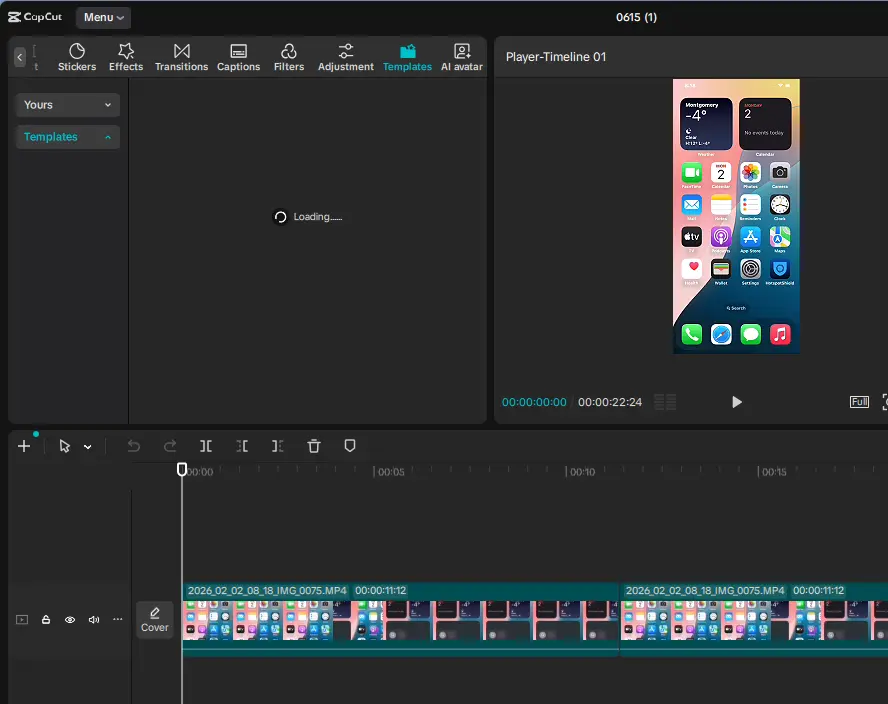
Templates in CapCut aren’t stored on your device, they’re fetched live from CapCut’s servers based on your account, your region, and which version of the app (or which platform) you’re using.
That’s the root of almost every “not showing” complaint: something is interrupting that fetch, or the catalog being fetched is genuinely different from what you expect.
Use this table to jump straight to the fix that matches your situation instead of working through every step in order.
| Symptom | Likely Cause | Jump To |
|---|---|---|
| Template tab is completely empty or blank | Weak connection, or you’re on Web/Desktop where the catalog is smaller | Fix #1, Fix #2 |
| Spinner never stops loading | Unstable connection or server hiccup | Fix #2 |
| Templates worked yesterday, gone today | Cache corruption or outdated app version | Fix #3 |
| Saved or paid templates missing specifically | Logged into a different account than usual | Fix #4 |
| Template tab exists but library looks smaller than expected | Region restriction or gradual rollout | Fix #5 |
| Tab loads fine, but searching a keyword returns zero results | Search-index gap, not a catalog gap | Fix #6 |
Why this happens, in plain terms: because templates are server-fetched rather than bundled with the app, clearing your cache doesn’t always help, you’re not clearing a broken local file, you’re just forcing CapCut to re-request data from a server that may still be serving the wrong account, region, or platform-limited catalog.
That’s why the same fix works for one person and does nothing for the next.
Fix #1: Confirm It’s Not a Platform Limitation (Mobile vs. Web vs. Desktop)
Before you touch cache or settings, rule out the most overlooked cause: CapCut simply doesn’t show the same template experience on every platform.
| Platform | Template Catalog Size | Login Required? | Known Limitation |
|---|---|---|---|
| Mobile app (iOS/Android) | Full catalog, including TikTok-linked and trending templates | Sometimes, for saved/paid templates | Strongest and most complete experience |
| CapCut Web | Smaller “official gallery” only | Often required for paid templates | Missing many trending/creator templates |
| CapCut Desktop/PC | Most limited catalog | Required for account-linked templates | Some templates are mobile-only and won’t open on PC at all |
If you’re on Web or Desktop and a specific template isn’t there, that’s not necessarily a bug, check the same template on the mobile app before assuming something is broken. If it appears on mobile but not desktop, the issue is platform scope, not your device.
For a fuller breakdown of what each version can and can’t do, see our guide to CapCut Online vs. Desktop vs. Mobile.
Fix #2: Check Your Internet Connection and Server Status
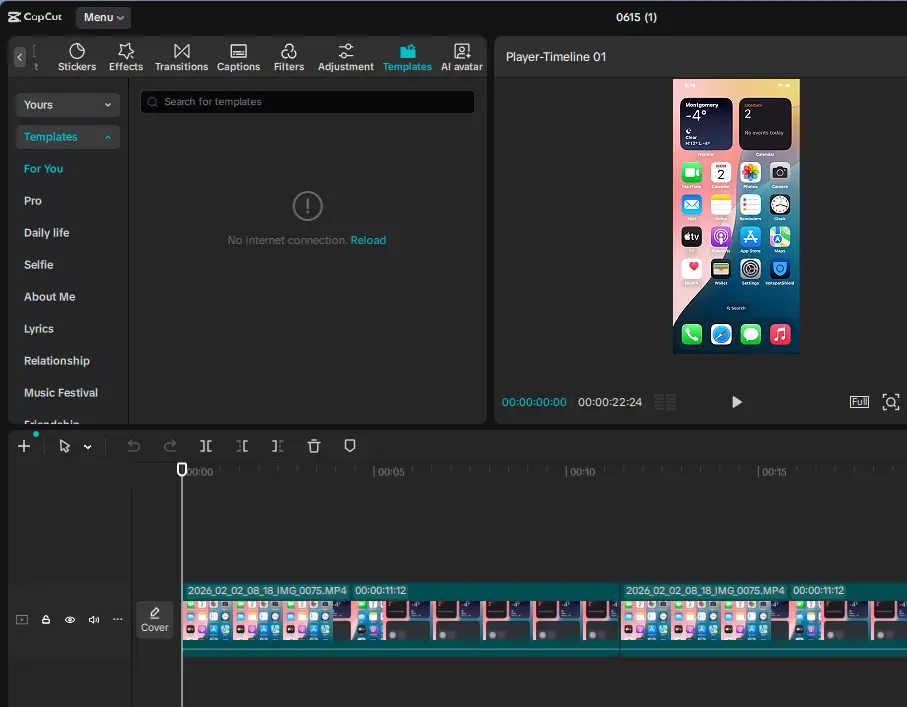
Since templates load from CapCut’s servers in real time, connection quality matters more than people expect.
- Switch between WiFi and mobile data (or vice versa) and reopen the Template tab
- If you’re on a shared or public WiFi network, try mobile data as a test, some networks throttle or block parts of CapCut’s traffic
- On desktop, confirm CapCut has permission through your firewall to access the internet (Windows Firewall sometimes blocks it silently)
- If nothing loads across multiple networks, the issue may be a temporary server-side hiccup on CapCut’s end rather than your connection — wait 15–20 minutes and retry
Fix #3: Clear Cache and Update CapCut to the Latest Version
This is the standard fix, and it genuinely resolves a large share of cases — but the steps differ by device, and doing the wrong one wastes time.
Android:
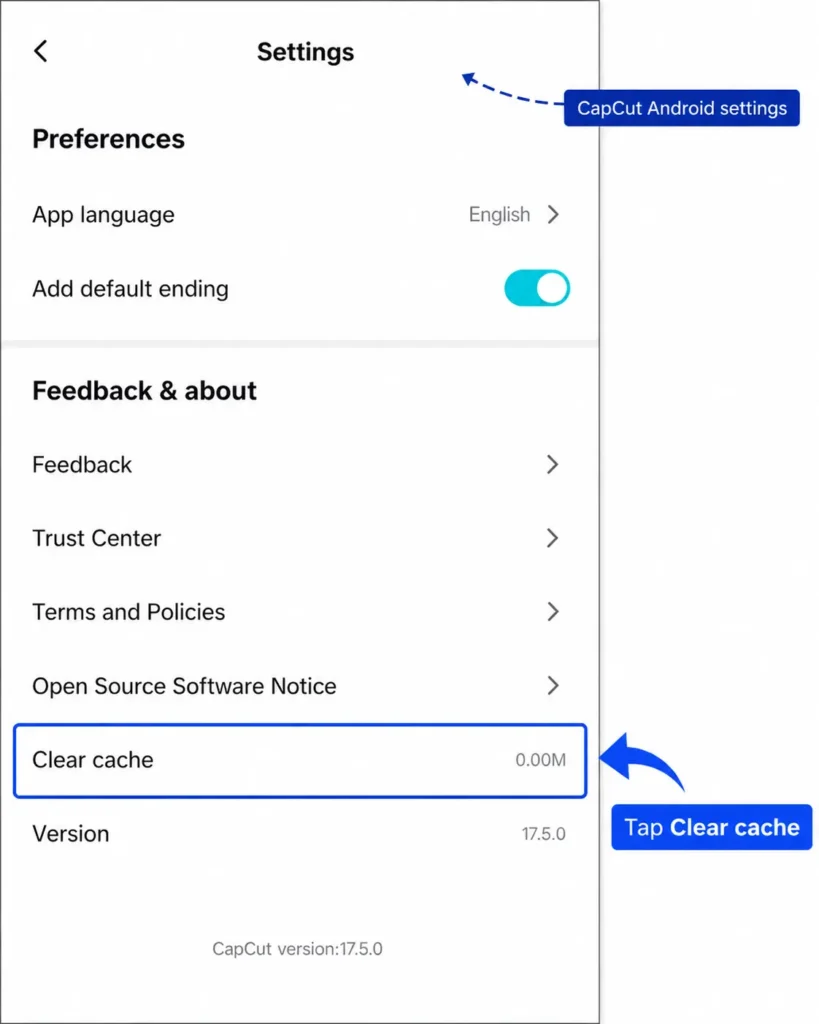
- Open Settings → Apps → CapCut → Storage
- Tap “Clear Cache” (not “Clear Data” — that will log you out and remove local settings)
- Reopen CapCut and check the Template tab
iPhone:
- Open Settings → General → iPhone Storage → CapCut
- Tap “Offload App” (iOS doesn’t offer a cache-only clear, so this is the equivalent)
- Reinstall from the App Store and log back in
Desktop (Windows/Mac):
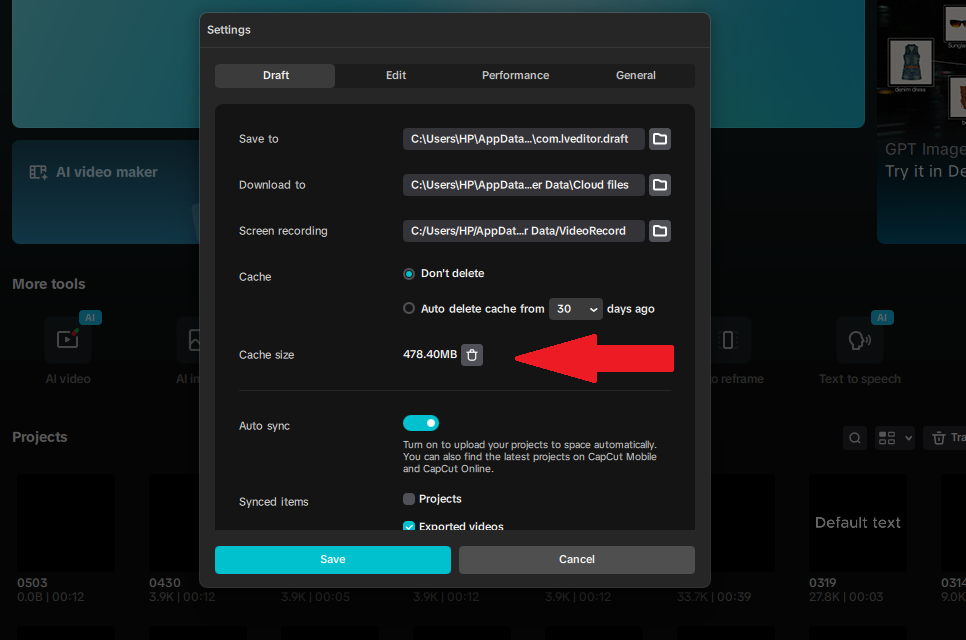
- Open CapCut → Settings → Version → Check for Updates
- Install any available update and restart the app fully
- If templates still don’t load, close CapCut completely (not just minimize) before reopening
CapCut ships template-related bug fixes fairly frequently in its regular app updates, so if you haven’t updated in more than a few weeks, do this before anything else.
Worried about losing your work in the process? Clearing cache is safe, see does clearing CapCut cache delete projects for exactly what does and doesn’t get wiped.
Fix #4: Fix Account/Login Mismatches (Saved & Paid Templates Missing)
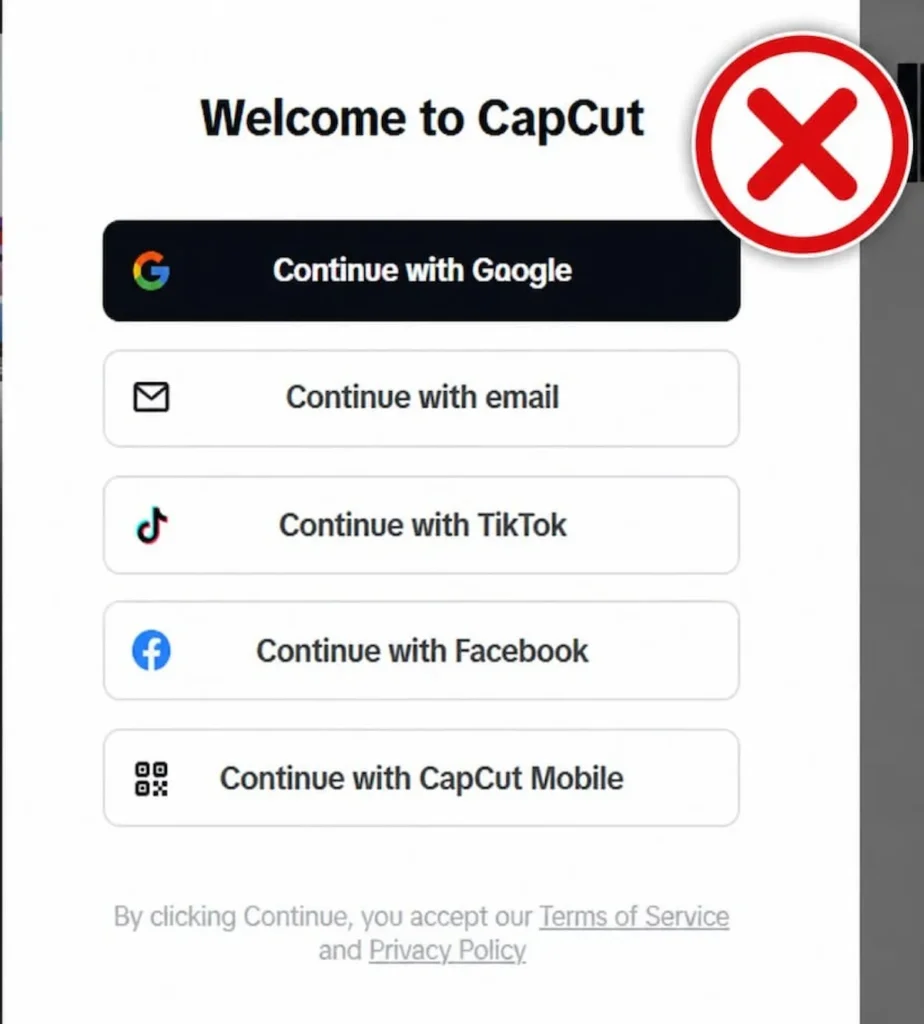
This is the fix almost every other guide skips, and it’s often the actual cause when specific templates (saved, favorited, or purchased) go missing while the general catalog looks fine.
CapCut lets you sign in with Google, TikTok, Facebook, or email — and using a different method than you originally signed up with creates a separate account, even if it’s tied to the same email address. That new account has an empty template library.
What this looks like in practice: you reinstall the app or switch devices, tap “Continue with Email” out of habit, and suddenly your saved templates are gone.
They’re not deleted, you’re just logged into a different account. Sign out, then sign back in using the exact method you originally used (check whether it was Google, TikTok, or Email) and your library should reappear immediately.
If you’re not sure which method you used originally, try each one in turn, this takes under a minute and resolves the issue faster than any cache clear or reinstall.
If you’re getting stuck at the login step itself rather than just missing templates afterward, our guide on can’t sign into CapCut covers that separately.
Fix #5: Resolve Region Restrictions and Rollout Issues
Some templates, particularly trending or promotional ones are region-locked and only appear for accounts registered in specific countries. This isn’t a bug; it’s intentional.
- Check your account region inside CapCut’s settings and confirm it matches where you actually are
- New features and templates often roll out gradually, meaning your app build may not have received a specific template yet even if it’s fully updated
- If a template works for a friend but not you, region or rollout timing — not a broken app — is usually why
This is also worth checking if a paid template specifically won’t load: confirm your subscription or CapCut free trial is still active, since expired access can look identical to a region-lock from the outside.
Fix #6: When Search Works But Returns No Templates
An empty search result is a different problem than a missing Template tab, and it’s worth treating separately. If the tab loads fine but searching a specific keyword returns nothing:
- Try a broader or differently worded search term, CapCut’s search index can be inconsistent with niche keywords
- On Web, temporarily disable ad blockers or privacy extensions, and turn off any active VPN — both are known to interfere with the web catalog specifically
- Test the same search term on mobile if you’re on desktop or web — desktop search is the most limited of the three platforms, so a zero-result search there doesn’t necessarily mean the template doesn’t exist
Once you do find the right template, remember you’re not stuck with it as-is, check out our guide on how to edit CapCut templates to customize clips, text, and timing to fit your footage.
Still Not Working? What to Do Next (Reset, Reinstall, Contact Support)
If you’ve worked through the fixes above and templates still won’t show:
- Confirm it’s not new. If templates never worked on this device/account combination, the issue is more likely platform or region-related (Fixes #1 and #5) than a local bug.
- If they worked before and suddenly stopped, a full reinstall (not just cache clearing) resets local app state completely and resolves most lingering issues.
- If nothing works after all of the above, contact CapCut support directly through the app’s Help section — at that point it’s likely an account-specific or server-side issue that needs a manual look.
Frequently Asked Questions
Why are my CapCut templates not showing up?
Most often it’s a connection issue, an outdated app version, cache corruption, or a region restriction. Less commonly, it’s an account mismatch from signing in with a different login method than usual.
How do I fix CapCut templates stuck on loading?
Switch between WiFi and mobile data, close any other apps running in the background, and give the server a few minutes if the issue is widespread rather than device-specific.
Why can’t I find a template I saved in CapCut?
This is almost always a login mismatch — you’re likely signed into a different account than the one you saved it on. Sign out and back in using your original sign-in method (Google, TikTok, or Email).
Are CapCut templates different on desktop than on mobile?
Yes. Mobile has the fullest catalog, Web shows a smaller official gallery, and Desktop is the most limited of the three — some templates are mobile-only by design.
Does a VPN affect CapCut templates loading?
Yes, particularly on CapCut Web. VPNs and privacy extensions can interfere with the template catalog loading or with search returning results, so it’s worth turning them off as a test.
