
Can Other People See What You Make on CapCut?

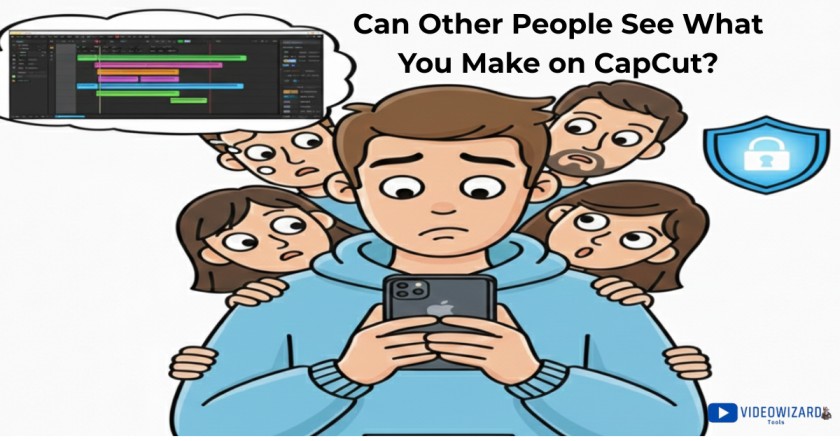
CapCut makes editing feel personal… until you notice things like profiles, templates, and creator pages.
Then the question hits: “Wait — can other people see what I’m making?”
In this guide, you’ll learn what’s actually visible to others, what stays on your device, and the few actions that can accidentally make your work shareable.
By the end, you’ll know exactly how to keep your projects private and edit with peace of mind.
The Quick Answer: No — other people cannot see what you make on CapCut by default.
Your videos and projects stay private unless you do one of these things on purpose:
- Publish a video to your CapCut profile
- Share a CapCut link
- Post the exported video to TikTok, Instagram, YouTube, or another platform
- Turn on cloud sync or social features tied to your account
Simply editing a video, saving a draft, or exporting it to your device does not make it public.
The confusion usually comes from CapCut’s Templates tab and profile system. Those show public templates and creators, not your private drafts. Your unfinished projects stay on your device and aren’t visible to anyone else unless you choose to share them.
Why People Get Confused (And Panic)
CapCut’s layout makes a lot of first-time users think their videos are public when they’re not. Most of the fear comes from a few common situations people talk about online.
First, the Templates tab shows other people’s videos right next to the editing tools. That makes it feel like CapCut is a social feed. It isn’t. Those videos are public templates created by other users, not your drafts.
Second, CapCut can create a profile shell when you sign in. Seeing a profile page makes people assume their edits are visible. In reality, nothing shows there unless you publish something.
Another big one is templates. Many users worry that using someone else’s template lets them see your video. It doesn’t. Template creators can see usage numbers, not your footage.
Exporting causes panic too. People think tapping Export uploads the video somewhere automatically.
It doesn’t. Export just saves the video to your device. It only becomes public if you post or share it.
All of this adds up to the same fear: “Did I accidentally make this public?” Most of the time, the answer is no.
What Other People Can See on CapCut (And What They Can’t)
What Stays Private:
These things are not visible to anyone else:
- Draft projects saved on your device
- Videos you’re still editing and haven’t shared
- Clips, photos, and raw footage inside your projects
- Edits made while offline
- Projects you never publish or share
If it lives only in your Projects/Drafts area, it’s private.
What Can Become Visible
Other people can only see your work if you choose to make it visible, such as:
- Publishing a video to your CapCut profile
- Sharing a CapCut link
- Posting the exported video to TikTok, Instagram, YouTube, or another platform
- Enabling cloud sync or social features tied to your account
CapCut does not automatically show your drafts to anyone. Visibility always requires an action from you.
Templates vs Projects vs Profile (This Is Where Most Confusion Comes From)
CapCut uses three different areas, and they look similar if you’re new. They do very different things.
Templates
The Templates tab is a public gallery. Everything you see there was intentionally shared by other creators as templates.
Seeing videos here does not mean your own edits are visible.
Using a template only means you’re borrowing the structure. It does not send your video to the template creator.
Projects (or Drafts)
Projects are where your real work lives.
- These are your private edits
- They stay on your device by default
- No one else can see them
If a video is sitting in Projects and you haven’t shared it, it’s private.
Profile
Your profile only shows content if you publish something.
- If you never post, your profile stays empty
- Having a profile does not make your drafts public
- Signing in does not auto-publish your videos
Most people panic because they see a profile page and assume everything is visible. It isn’t.
If You Use Someone Else’s Template, Can They See Your Video?
No. Template creators cannot see your video.
When you use a CapCut template:
- The creator does not see your footage
- They do not see your draft
- They do not get access to your edit
At most, template creators can see anonymous usage numbers, like how many times a template was used. They don’t see who used it or what the final videos look like.
Your video only becomes visible to others if you publish it, share a link, or post it on another platform. Simply using a template keeps your work private.
Does Exporting a CapCut Video Make It Public?
No. Exporting does not make your video public.
When you tap Export in CapCut, the app simply saves the video to your device. Nothing is uploaded, posted, or shared automatically.
Your video only becomes visible to other people if you:
- Post it to TikTok, Instagram, YouTube, or another platform
- Share it as a link
- Publish it to your CapCut profile
This is where a lot of panic comes from. People assume “export” means “upload.” In CapCut, it doesn’t. Exporting is the last private step before you decide what to do with the video.
Why You Might See a Profile You Didn’t Create
CapCut can create a basic profile automatically when you sign in with email, TikTok, or another account. This catches a lot of people off guard.
Seeing a profile does not mean:
- Your drafts are public
- Your edits are visible
- Your videos were posted
It simply means your account exists.
That profile stays empty unless you publish something to it. If you’ve never posted a video to your CapCut profile, there is nothing for other people to see.
This is why many users think their work is exposed when it isn’t. The profile exists, but the content doesn’t.
How to Keep Your CapCut Projects Private
You don’t need to change much to keep everything private, but a few habits help avoid mistakes.
Safe setup checklist
- Don’t publish videos to your CapCut profile
- Don’t share CapCut links unless you want others to see the video
- Avoid turning on cloud sync if privacy matters to you
- Only link TikTok or other platforms if you plan to post
- Review permissions before tapping “Post” or “Share”
Settings worth checking
- Make sure you’re not publishing videos by accident
- Check whether cloud sync or social features are enabled
- Confirm that your profile has no published videos
If you keep your work inside Projects and only export to your device, your videos stay private.
Real-Life Scenarios (What’s Actually Happening)
“I used a template and tested it with my face. Can anyone see it?”
No. If it’s still in Projects and you didn’t publish or share it, no one can see it.
“I already exported the video. Is it public now?”
No. Exporting only saves the video to your device. It’s still private unless you posted or shared it.
“I posted the video to TikTok, but my TikTok account is private.”
Only people approved on your TikTok account can see it. CapCut itself doesn’t make it public.
“I linked my TikTok account to CapCut. Does that change anything?”
Linking accounts doesn’t publish your drafts. It only makes posting easier when you choose to post.
“I’m editing on desktop instead of my phone.”
The rules are the same. Projects stay private unless you publish, share, or sync them.
In every case, visibility comes from an action you take. Editing alone never makes your video public.
Quick Troubleshooting (When You’re Still Unsure)
“I can’t find my drafts. Did they get deleted or shared?”
Drafts live in Projects. If you switched devices or signed out without sync, they may not appear, but that doesn’t mean they were shared.
“I see numbers like views or remakes somewhere. Is that my video?”
Those numbers usually belong to templates, not your private projects. Your drafts don’t have public stats.
“My video shows under a profile thumbnail. Is it public?”
A video only shows on a profile if it was published. If you didn’t publish it, it’s not visible.
“I want to delete everything just to be safe.”
Open Projects, delete the drafts you don’t want, and confirm there are no published videos on your profile.
“I want to sign out but keep my projects.”
Projects saved locally usually stay on your device. If you rely on cloud sync, confirm your projects are backed up before signing out.
More FAQs on Who Can See What You Make on CapCut
+ Can people see my CapCut drafts if I don’t post them?
+ If I use a template, can the template creator view my video?
+ Does exporting automatically upload my video anywhere?
+ Why do I see a CapCut profile even though I never posted?
+ If I link TikTok, does that make my CapCut projects public?
+ Can someone steal my CapCut project or access my raw clips?
+ What should I do if I think something is public?
Tip: Tap a question to expand the answer.
Conclusion
At the end of the day, CapCut only becomes “public” when you make it public.
The reason this topic feels confusing is that the app mixes two worlds in one place: your private workspace (Projects) and public content (Templates, creator pages, and social-style profiles).
If you don’t clearly separate those in your head, it’s easy to assume everything you touch is visible to others — especially when you see profiles, template feeds, and share buttons all around the app.
Here’s the simple takeaway: editing is private, exporting is local, publishing/sharing is public. Once you understand that difference, the anxiety disappears. Your drafts don’t magically show up on anyone’s phone, and your unfinished work doesn’t get “seen” just because it exists inside the app.
If you ever feel unsure, use this quick check: Is it still inside Projects, and have you shared a link or posted it anywhere? If the answer is no, you’re fine. Keep your work in Projects until you’re ready, and only use sharing or publishing when you actually want other people to see it.
Related CapCut Privacy, Export & Account Guides
- How To Export CapCut Without Pro: Easy Guide
- How to Export CapCut Videos Without Watermark (Step-By-Step)
- Can You Take a Filter Off a CapCut Template?
- Can Two People Work on CapCut at the Same Time?
- How to Cancel CapCut Subscription (Mobile & Desktop)
- How to Add, Change & Fix CapCut Payment Method
- Common CapCut Errors, Crashes & Solutions
- Is CapCut a One-Time Purchase or Subscription?
