

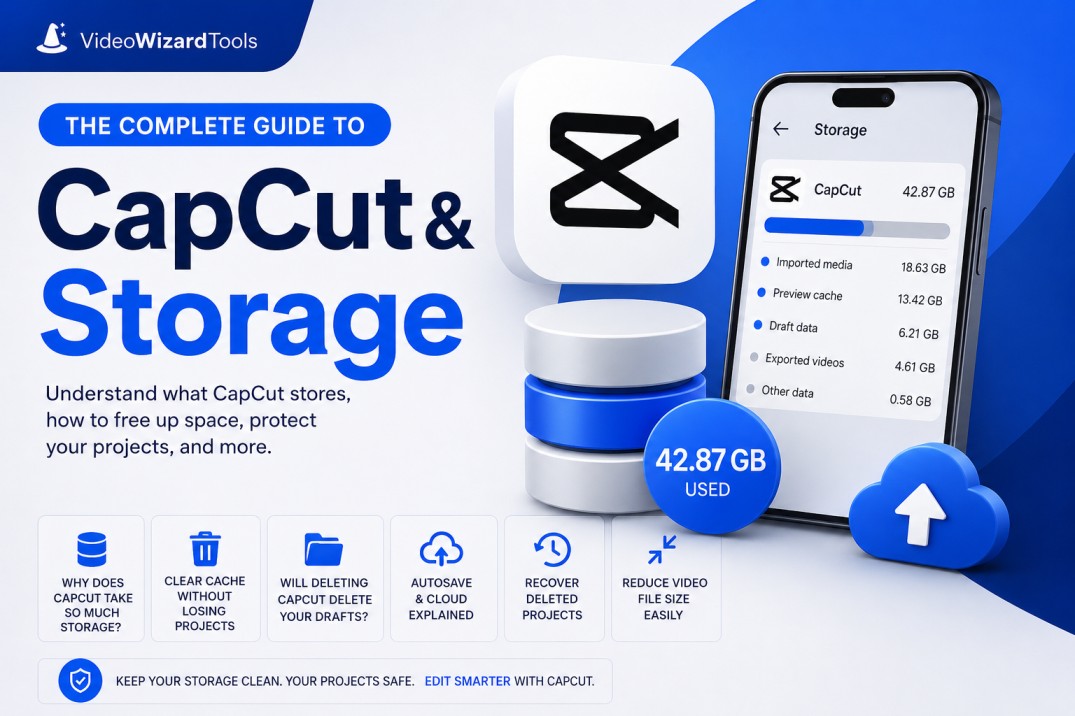
If you have ever opened your phone settings and found CapCut quietly eating 10GB, 30GB, or even more of your storage — you are not alone.
Storage is one of the most common complaints CapCut users have, and most of the confusion comes down to not knowing what CapCut is actually storing and why.
This guide brings everything together in one place.
Whether you are trying to free up space, worried about losing your drafts, or confused about how CapCut saves your work, you will find the answer here, with links to our full guides for each topic.
Table of Contents
- Why Does CapCut Take So Much Storage?
- Does Clearing CapCut Cache Delete Your Projects?
- Does Deleting CapCut Delete Your Drafts?
- Does CapCut Autosave Your Projects?
- Does CapCut Save to Cloud or iCloud?
- How to Recover Deleted CapCut Projects
- How to Reduce Video File Size in CapCut
- Can CapCut Handle Long Videos and Large Files?
- Quick Storage Tips to Remember
- Frequently Asked Questions
- Related CapCut Guides
Why Does CapCut Take So Much Storage?
CapCut stores more than just the app itself on your device. When you edit a video, CapCut keeps your original imported clips, preview renders, editing cache files, autosaved draft data, and any exported videos — all at the same time.
A single project can quietly accumulate several gigabytes without you realising it.
The four main culprits are:
- Imported media: CapCut keeps a copy of every video or photo you bring into a project, separate from your camera roll
- Preview cache: temporary render files created so your timeline plays back smoothly while editing
- Draft data: every project you have not deleted is saved locally on your device
- Exported videos: finished exports saved to your gallery add to total storage on top of everything above
For the full breakdown of what is eating your storage and how to fix it, read our detailed guide: Why Does CapCut Take So Much Storage?
Does Clearing CapCut Cache Delete Your Projects?
This is one of the most common fears CapCut users have — and the short answer is no, clearing cache does not delete your projects or drafts.
Cache is temporary data that CapCut creates to make editing smoother. It includes preview renders and thumbnail data that CapCut can rebuild the next time you open a project.
Your actual project files, timeline edits, and draft data are stored separately and are not touched when you clear cache.
Clearing cache regularly is actually a good habit — it is one of the quickest ways to recover several gigabytes of space without losing any of your work.
To learn exactly how to clear your cache safely on both mobile and desktop, read: Does Clearing CapCut Cache Delete Projects?
Does Deleting CapCut Delete Your Drafts?
This one depends on where your drafts are saved. If your drafts are stored locally on your device — which is the default for most users — then yes, uninstalling CapCut will delete them along with the app.
CapCut does not automatically back up your drafts to the cloud unless you have cloud sync turned on manually.
Before you uninstall CapCut to free up space or fix a problem, always export your important projects as finished videos first, or enable cloud sync so your drafts are backed up.
Skipping this step is the number one reason creators permanently lose their work.
For the full picture on what gets deleted and what survives, read: Does Deleting CapCut Delete Drafts and Projects?
Does CapCut Autosave Your Projects?
Yes, CapCut autosaves your work as you edit — but it does not work like a traditional save button.
CapCut saves your project progress to your draft folder automatically as you make changes, so if the app crashes or your phone dies mid-edit, your work is usually recoverable when you reopen the app.
However, autosave only protects you up to the last save point, and it saves locally by default. If you delete the app, lose your device, or run out of local storage, autosave alone will not protect your projects. For full protection, you need to either export regularly or enable cloud sync.
To understand exactly how autosave works across mobile and desktop, read: Does CapCut Autosave Projects and Drafts?
Does CapCut Save to Cloud or iCloud?
CapCut has its own built-in cloud storage called Your Space, which is separate from iCloud. By default, CapCut saves your projects locally to your device — cloud sync is not turned on automatically. You have to enable it manually inside the app.
Here is what you need to know about CapCut cloud storage in 2026:
- Free users get 1GB of cloud storage — enough for a few project files but not large video footage
- CapCut Pro users get 100GB of cloud storage, which supports cross-device editing and automatic project backup
- CapCut Teams users get 1,000GB of shared storage for collaborative workflows
- iCloud is separate — CapCut does not sync to iCloud automatically, though exported videos saved to your camera roll will back up to iCloud if you have that enabled
How to Recover Deleted CapCut Projects
If you have already lost a project, do not panic yet. CapCut keeps a trash folder that holds deleted projects for up to 30 days before permanently removing them.
If cloud sync was enabled on your account before the deletion, you may also be able to recover the project from Your Space in the cloud.
For projects deleted more than 30 days ago without cloud backup, recovery becomes much harder and usually requires third-party data recovery software — and even then, success depends on whether the files have been overwritten on your device.
For step-by-step recovery instructions across mobile, desktop, and cloud, read: How to Recover Deleted CapCut Projects
How to Reduce Video File Size in CapCut
Large file sizes are a direct storage problem. If your exported videos are taking up too much space, or if you need to compress a video before sharing it, CapCut has built-in tools to reduce file size without ruining quality — but you need to know which settings to adjust.
The key levers are resolution, bitrate, and frame rate. Dropping from 4K to 1080p alone can reduce file size by 60 to 70 percent. Adjusting bitrate gives you finer control over the quality versus size tradeoff.
Most social media platforms also compress your video again on upload, so exporting at a slightly lower bitrate than maximum often produces a cleaner final result.
For the full compression guide with exact settings, read: How to Reduce Video File Size in CapCut Without Ruining Quality
Can CapCut Handle Long Videos and Large Files?
CapCut can handle long videos and large files, but there are practical limits that depend on your device and your plan. On mobile, very long projects or high-resolution footage can cause slowdowns, crashes, and storage issues because your phone has limited RAM and processing power compared to a desktop.
On desktop, CapCut handles larger projects much more comfortably. For creators regularly working with long-form content or 4K footage, a desktop workflow is strongly recommended over mobile to avoid performance and storage problems.
For a full breakdown of CapCut’s file size and video length limits, read: Can CapCut Handle Long Videos and Large Files?
Quick Storage Tips to Remember
- Clear your cache regularly — it does not delete projects and frees space instantly
- Export important projects before uninstalling CapCut — local drafts do not survive uninstallation
- Enable cloud sync if you edit across devices or want automatic backup
- Delete old drafts you no longer need — they stay on your device forever until you remove them manually
- Keep at least 5GB of free device storage for smooth exporting at 1080p
- Move finished exported videos to Google Photos or an external drive to free device space
Frequently Asked Questions
How much storage does CapCut usually use?
Many users report CapCut taking 10GB to 30GB+ because it keeps imported media, cache, drafts, and exports at the same time. Read full guide →
Is it safe to clear CapCut cache regularly?
Yes, it is completely safe and one of the fastest ways to free up space without losing your projects. Read full guide →
What should I do before deleting or uninstalling CapCut?
Export all important projects and enable cloud sync if possible, because local drafts will be deleted. Read full guide →
Does CapCut automatically back up projects to the cloud?
No, cloud sync is turned off by default. You must enable it manually to protect your drafts.
Where can I find deleted CapCut projects?
Check the Trash folder inside CapCut (kept for up to 30 days) or Your Space in the cloud. Read full guide →
Is CapCut better on mobile or desktop for big projects?
Desktop handles long videos and large files much better and uses storage more efficiently. Read full guide →
How do I reduce storage used by exported videos?
Lower the resolution, bitrate, or frame rate when exporting. This can reduce file size significantly. Read full guide →
